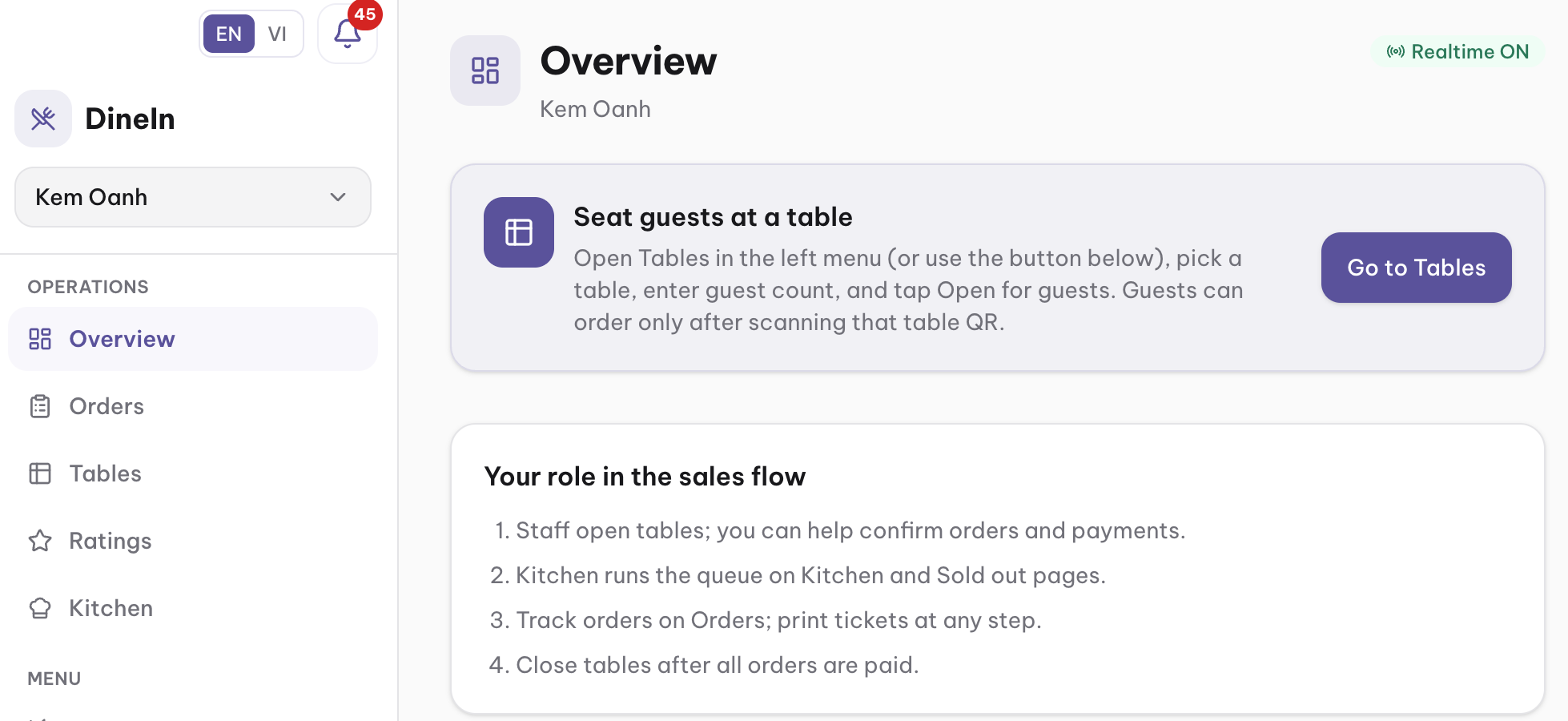
How iOrdly works
Start with sign-in and a shop, then follow an order from the table to the kitchen. Later sections cover reports, the assistant, notifications, and connections to another system. Each step shows a screenshot of that screen.
Basic
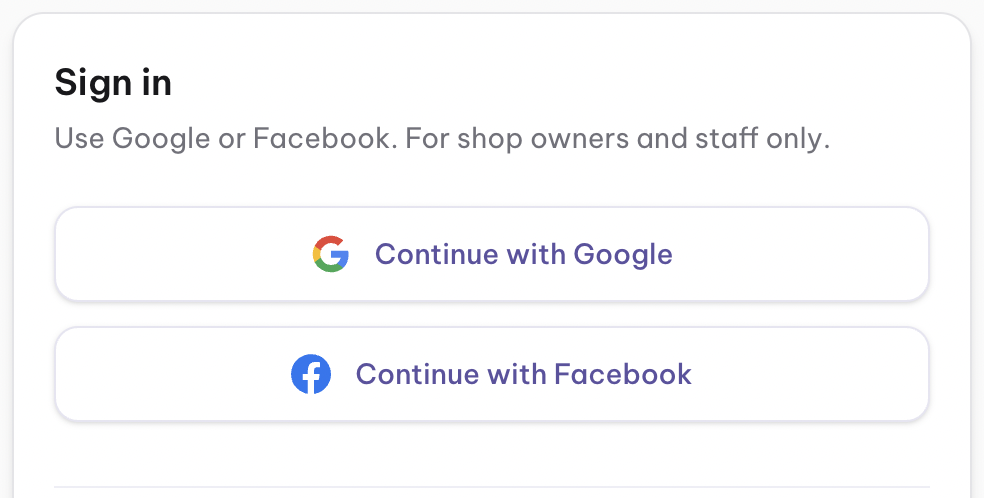
Sign in
Every signed-in role
People sign in with Google or Facebook. iOrdly does not ask for a password. The email from that account is the identity used for invitations.

Register a shop
Owner
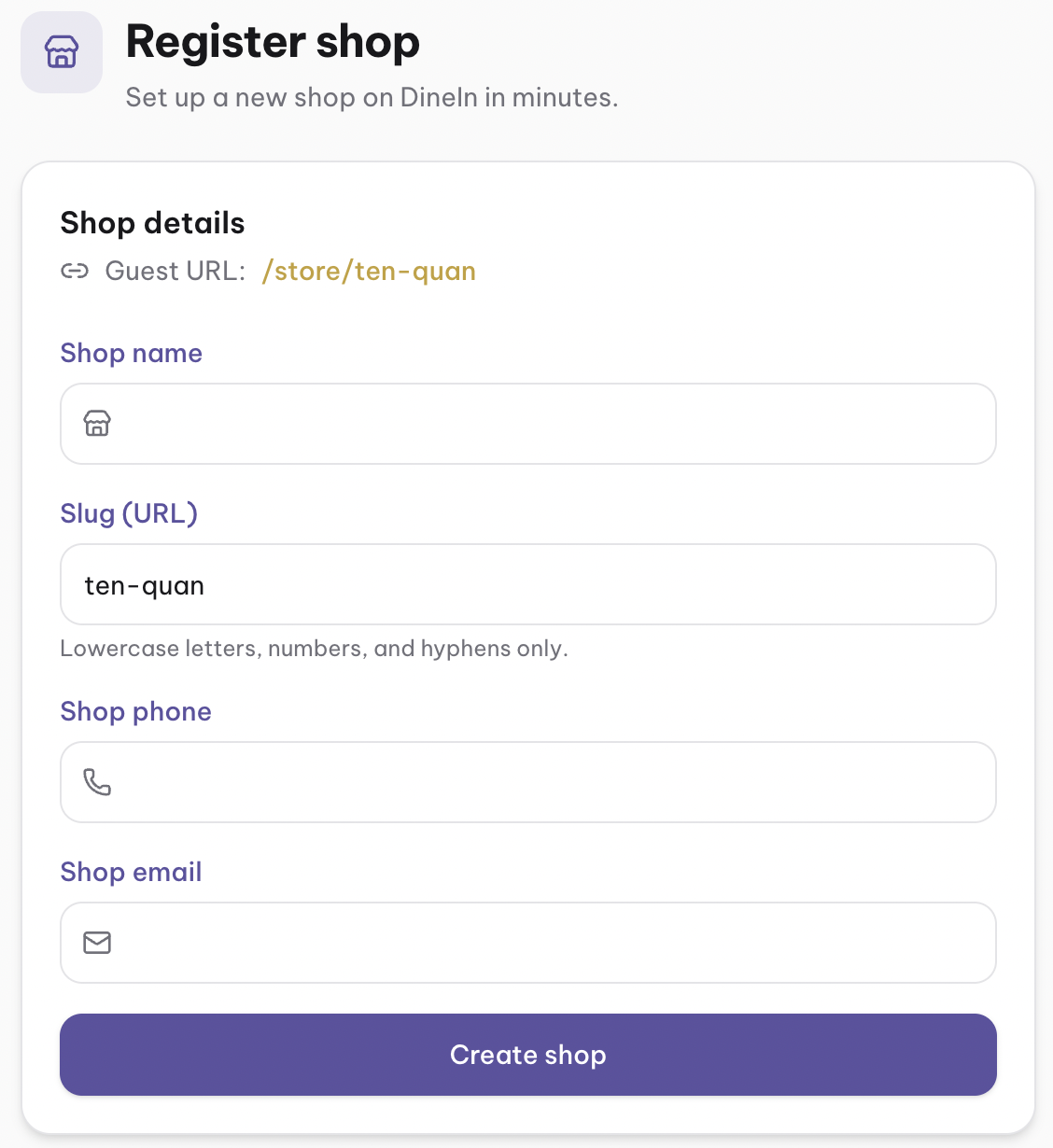
An owner creates a shop with a name and a short URL slug. One account can own more than one shop. Each shop has its own menu, tables, and orders.
Set the shop code
Owner, shop manager
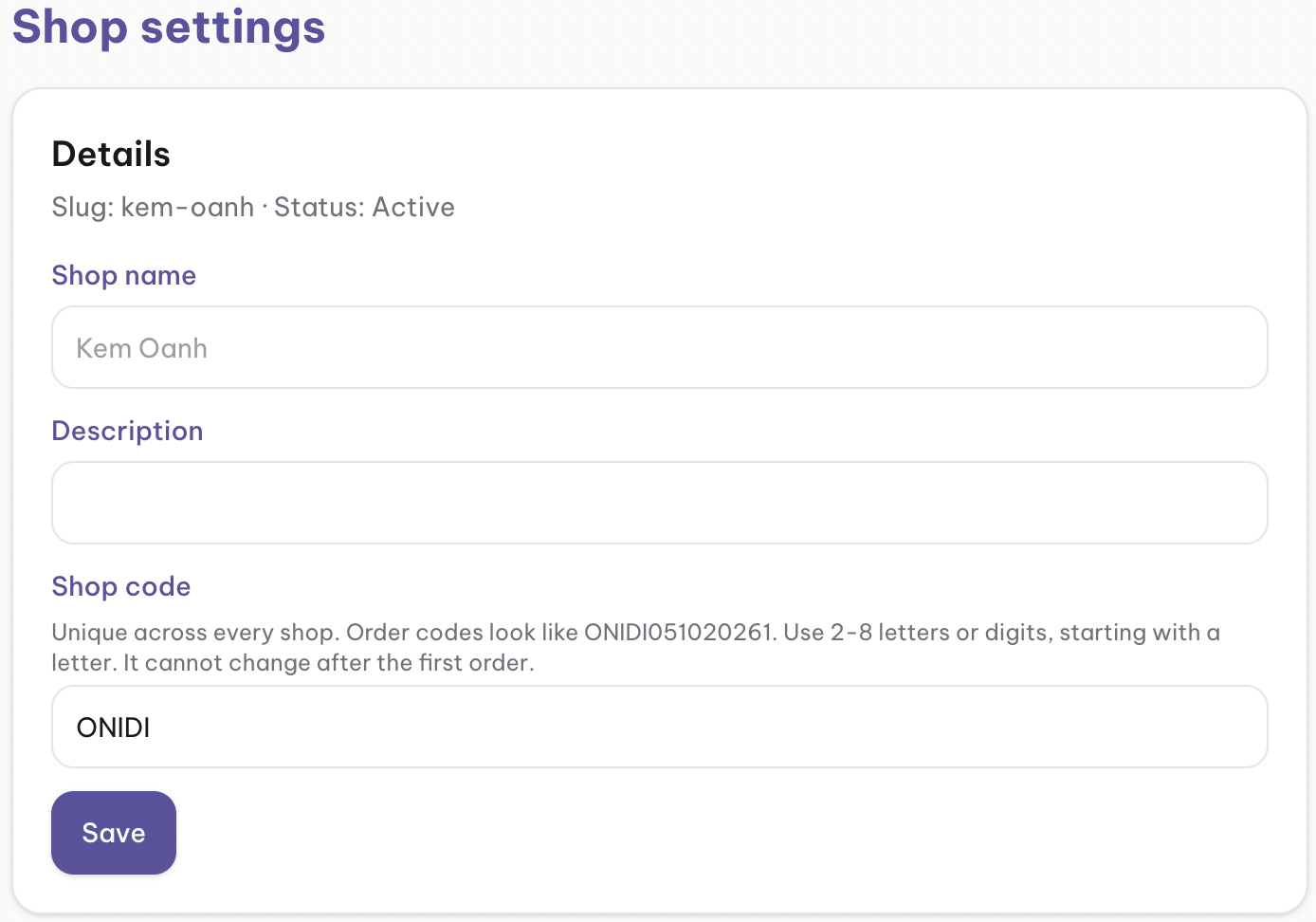
In shop settings, the shop code is a short prefix such as ONIDI. It must be unique across every shop. Order codes are that prefix, the date, and the sequence for the day, with no separators: ONIDI041020265.
Build the library and the menu
Owner, shop manager
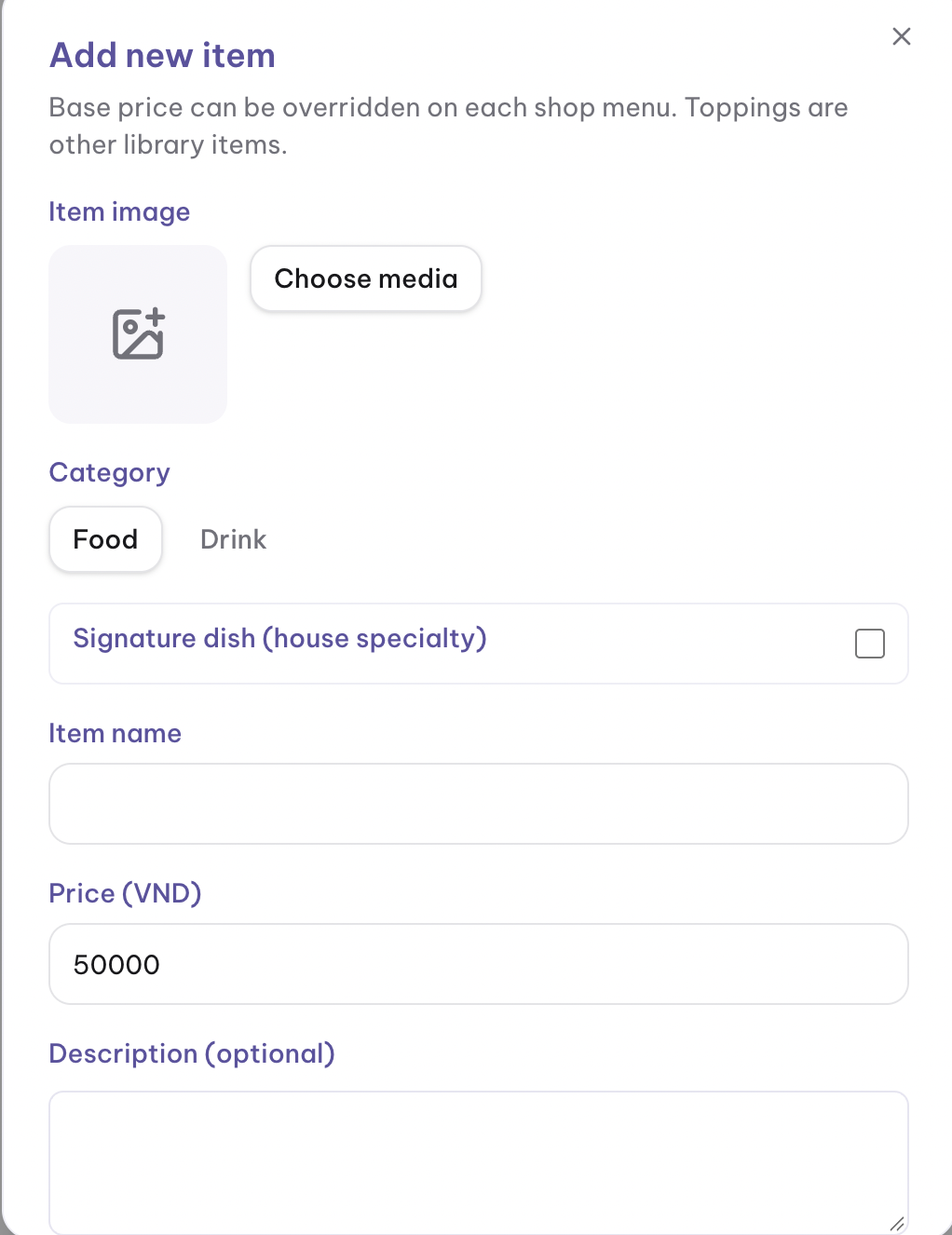
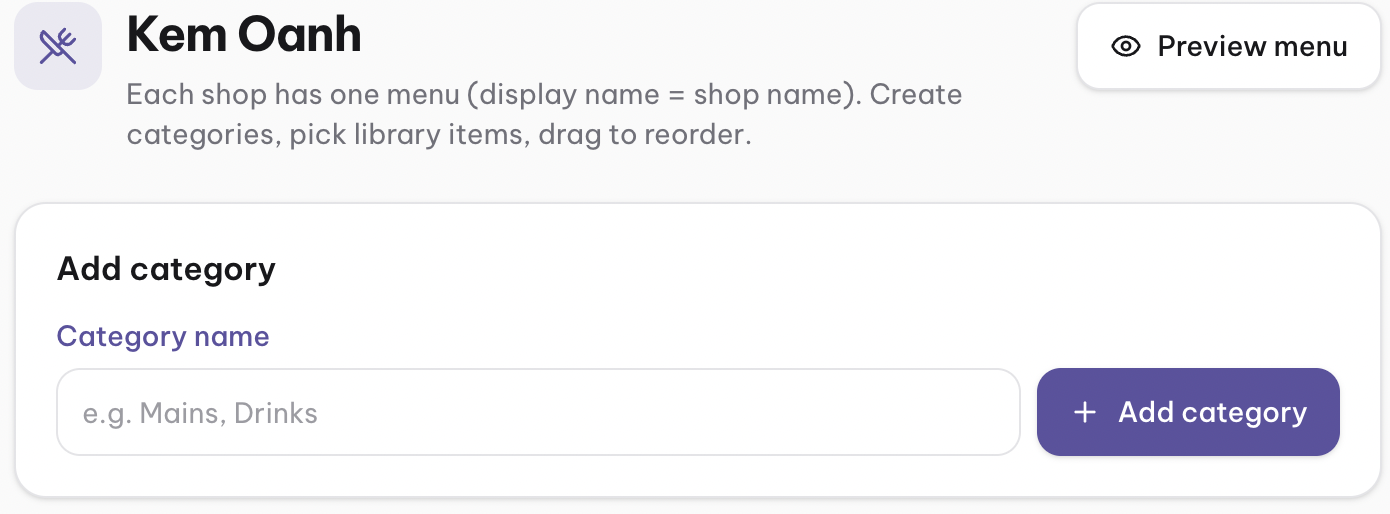
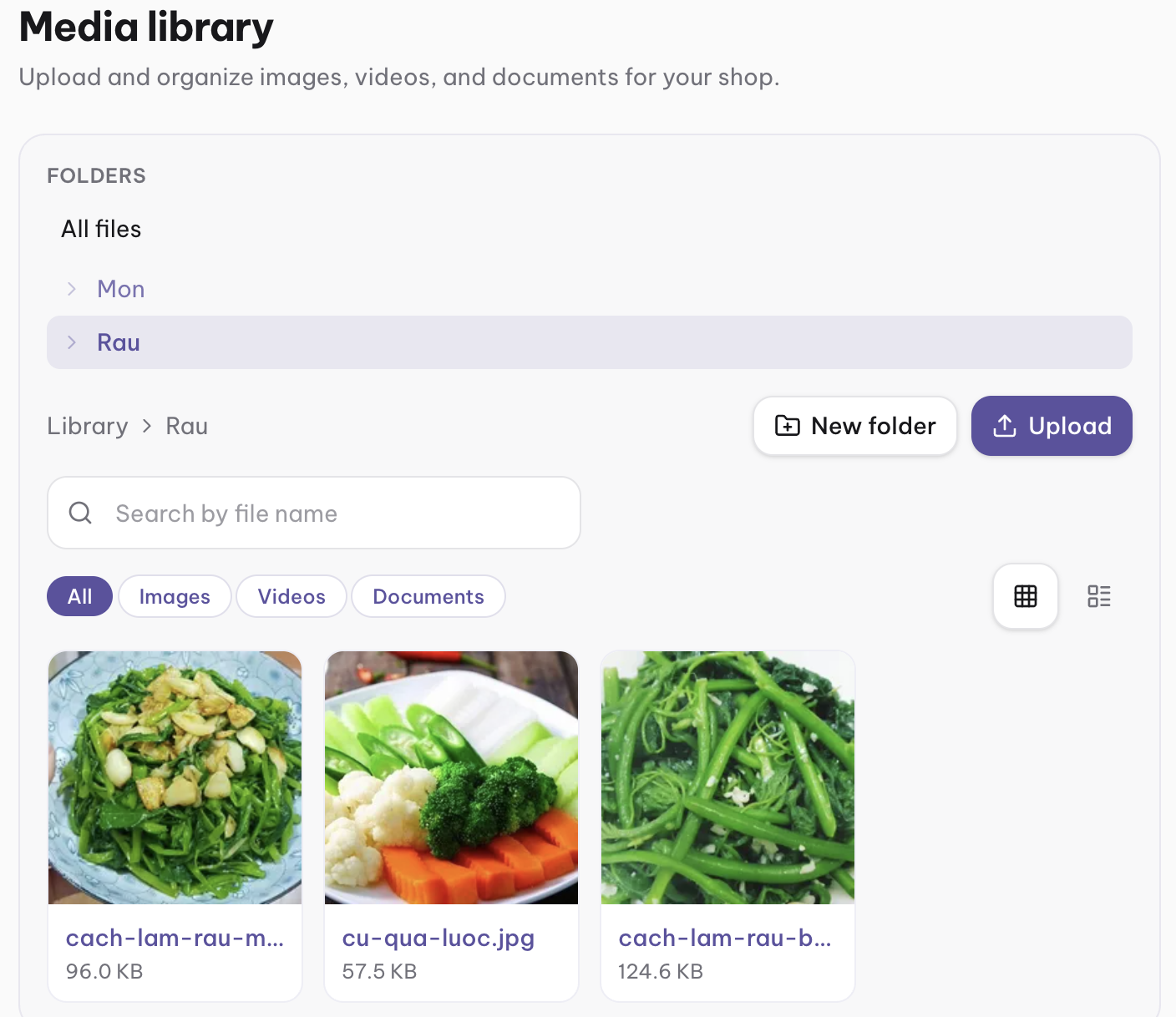
The item library holds dishes and drinks shared by the owner's shops. Each shop menu picks from that library, with its own price. Mark food or drink, and signature dishes, from the library.
Open tables and print QR
Owner, shop manager, staff
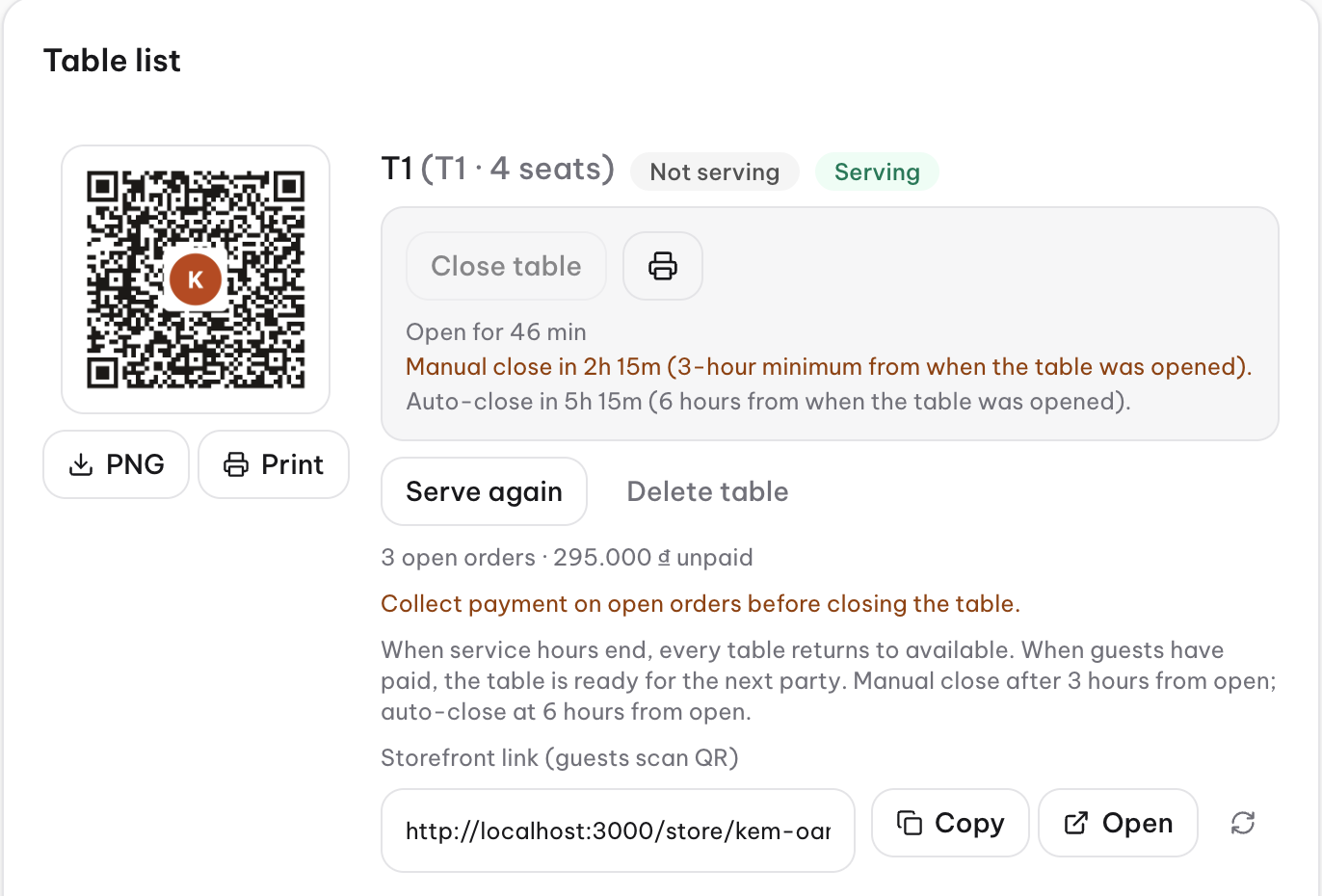
Each table has a QR code. A guest who scans it lands on that table's menu. Staff open a service session when guests sit down.
Guest orders from the table
Guest
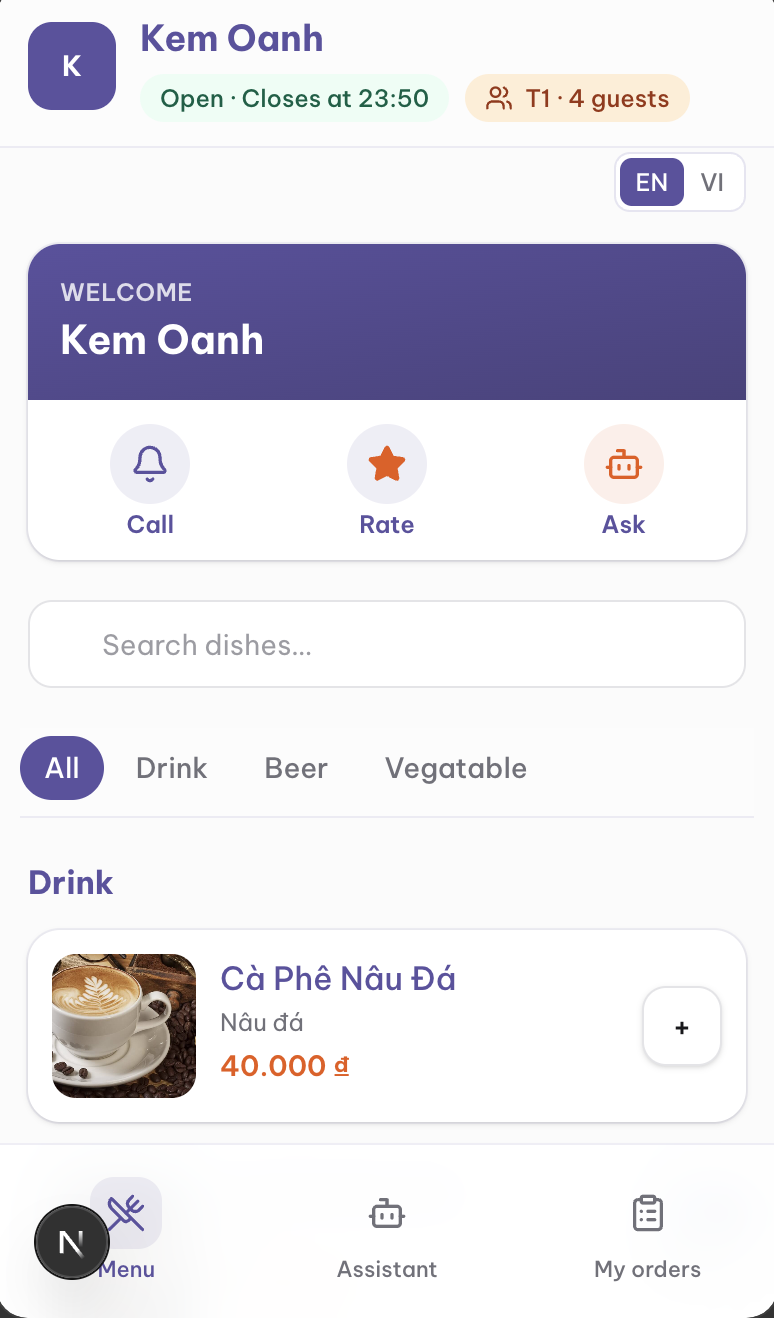
The guest browses the menu, adds dishes to the cart, and sends the order. They can follow each line until the order is done. Adding to the cart and adding to an existing order use different labels so they are not mixed up.
Daily service
Staff confirm the order
Staff, shop manager
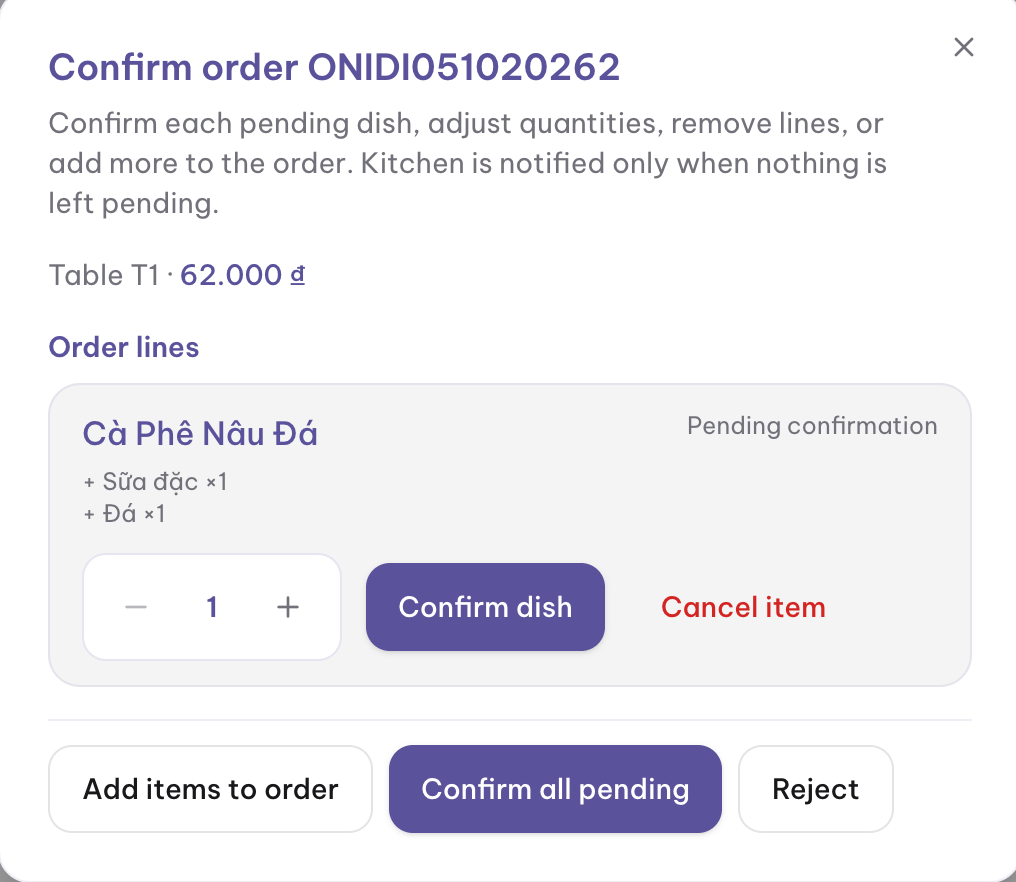
New lines stay pending until staff confirm them. Staff can confirm the whole order or one line, change quantity, remove a line, or add a dish. A guest who adds more food later must be confirmed again.
Kitchen receives a fully confirmed order
Kitchen
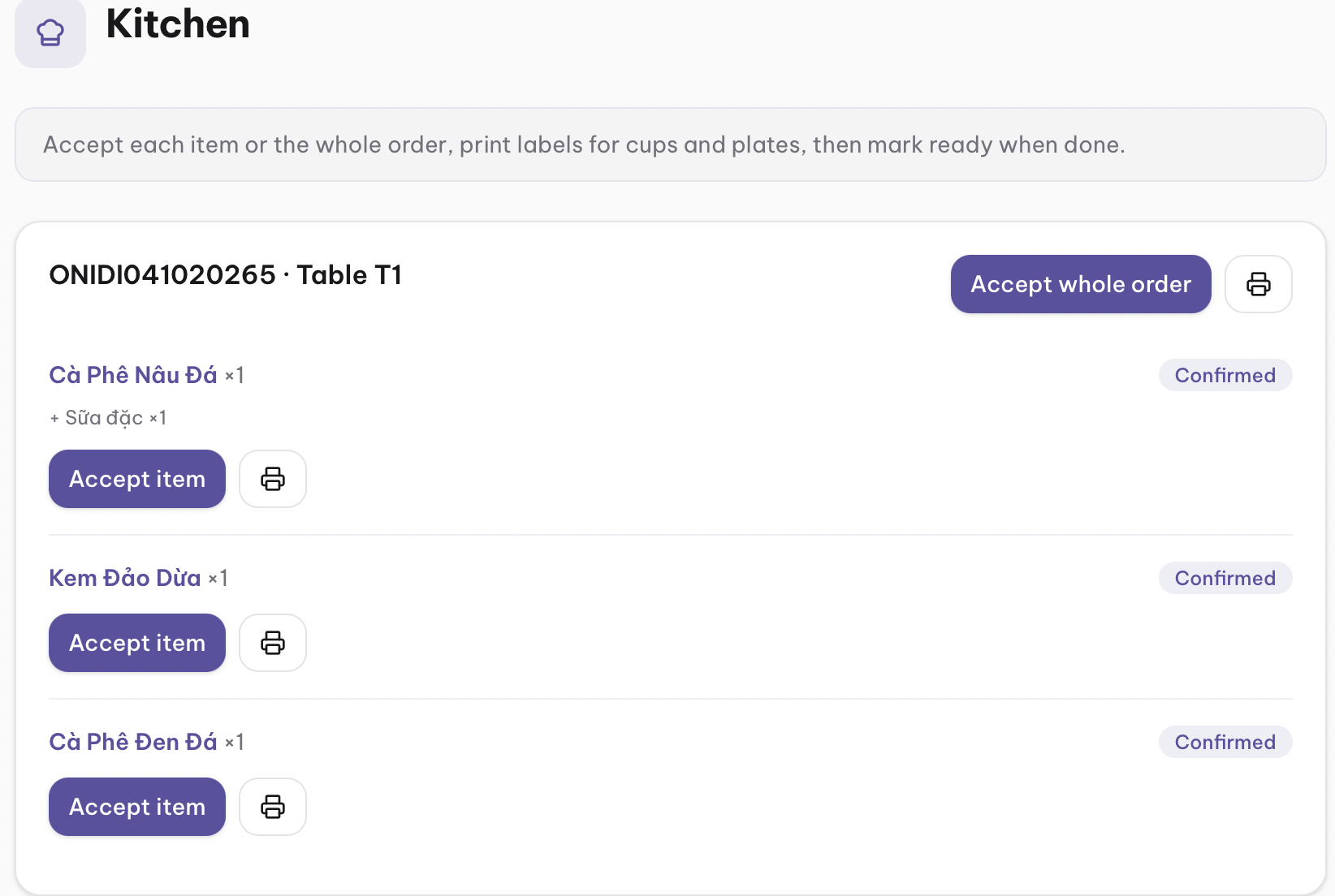
The kitchen queue shows an order only after every active line is confirmed. Nothing pending is left. Kitchen then accepts the ticket and moves lines through preparing, ready, and served.
Mark food ready and served
Kitchen, staff
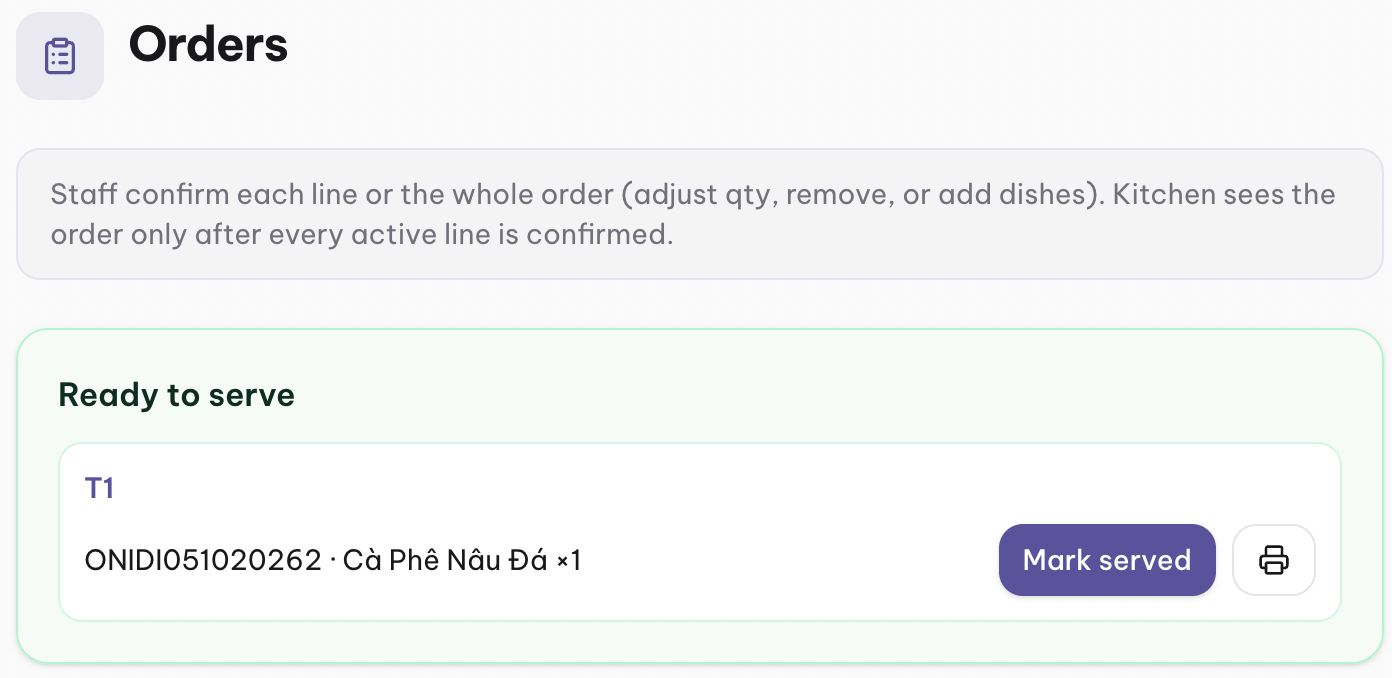
When a line is ready, staff get an alert during opening hours and bring it to the table. Served lines stay on the order in a stable order so the list does not jump around.
Deeper tools
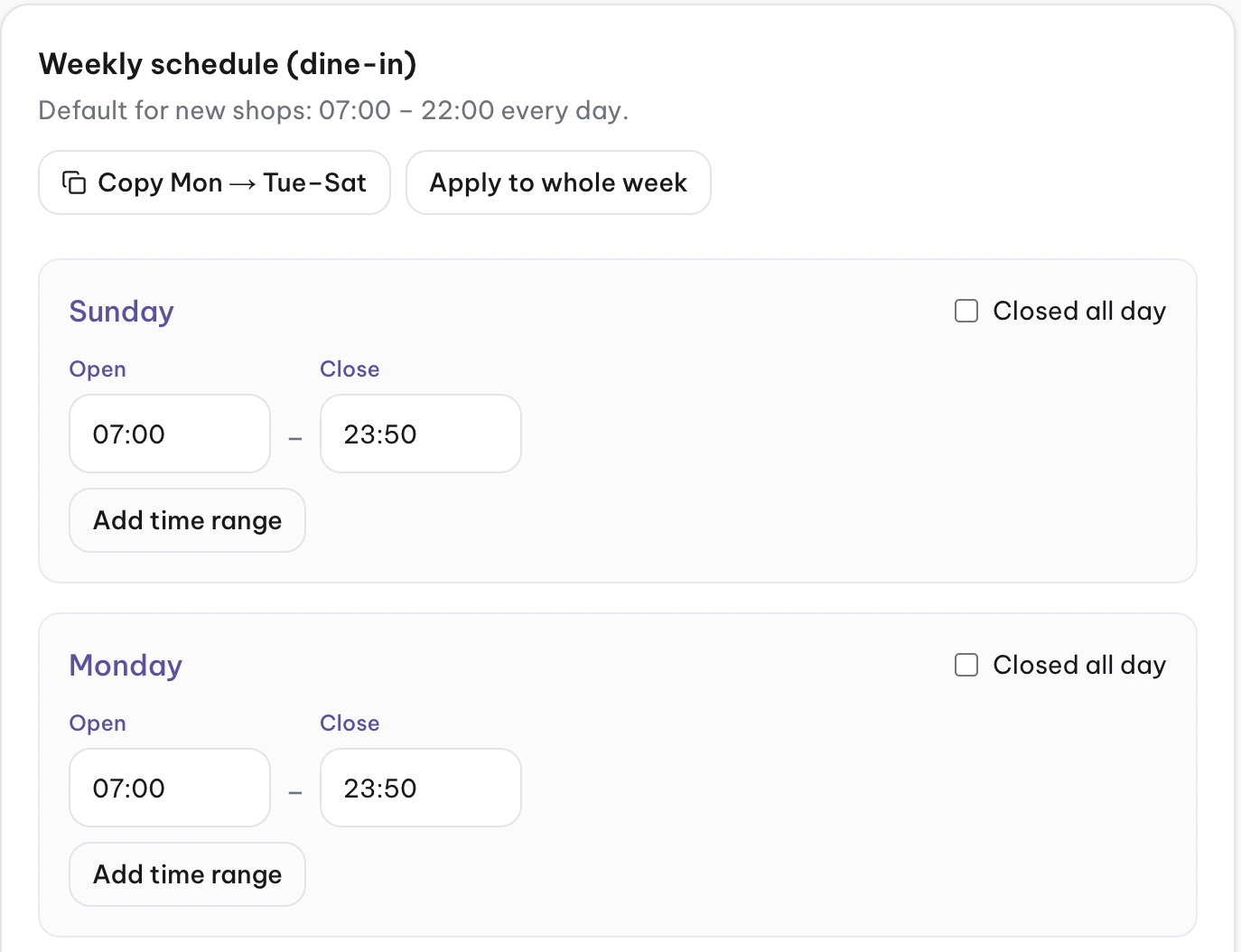
Opening hours and who is notified
Shop manager, staff, kitchen, guest
Staff and kitchen alerts run from opening until closing. The order cutoff only blocks new guest orders. It does not silence alerts. Guests can keep receiving updates until the order is cancelled, completed, or paid, including outside opening hours.
Plan quantities for the week
Owner, shop manager, kitchen
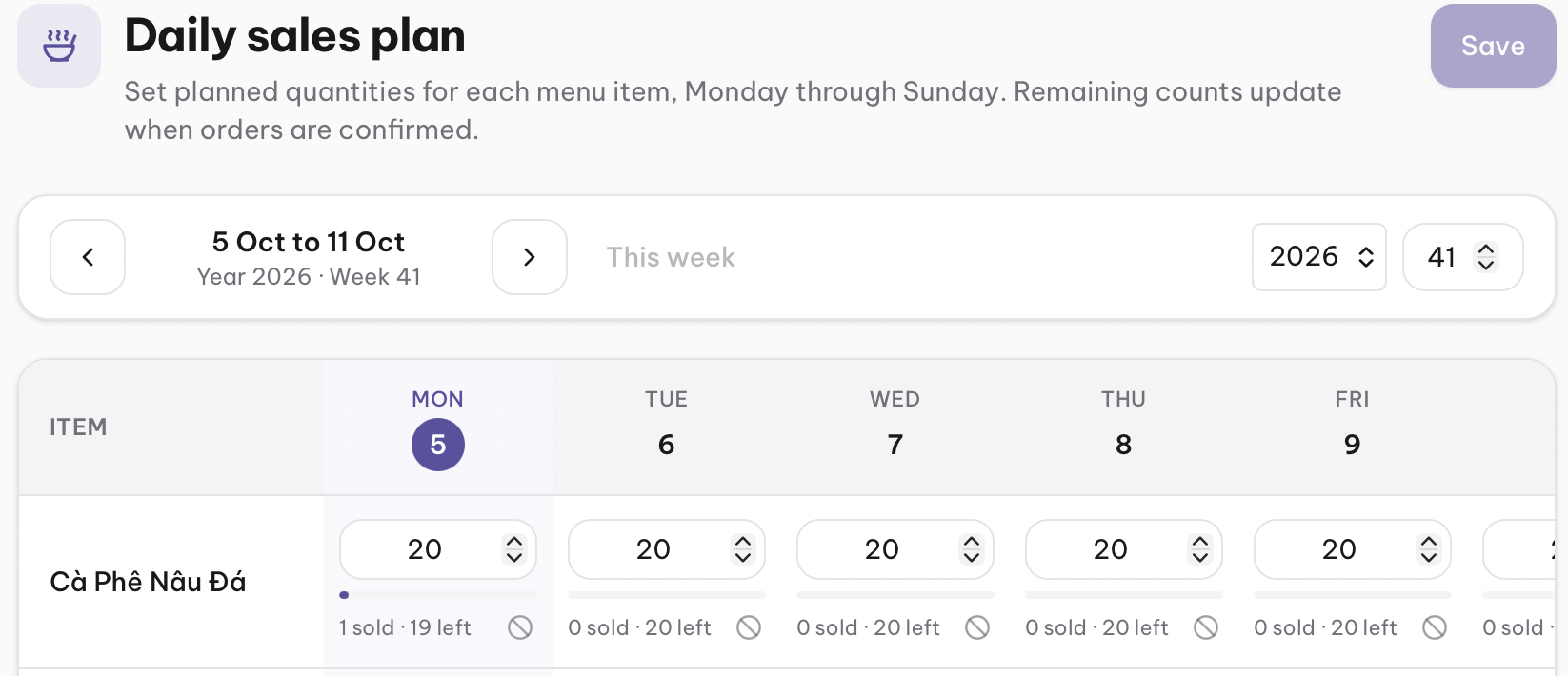
The daily sales plan sets how many of each dish the shop expects to sell, Monday through Sunday. Confirmed orders reduce what is left. The shop or kitchen can mark a day sold out.
Read reports
Owner, shop manager
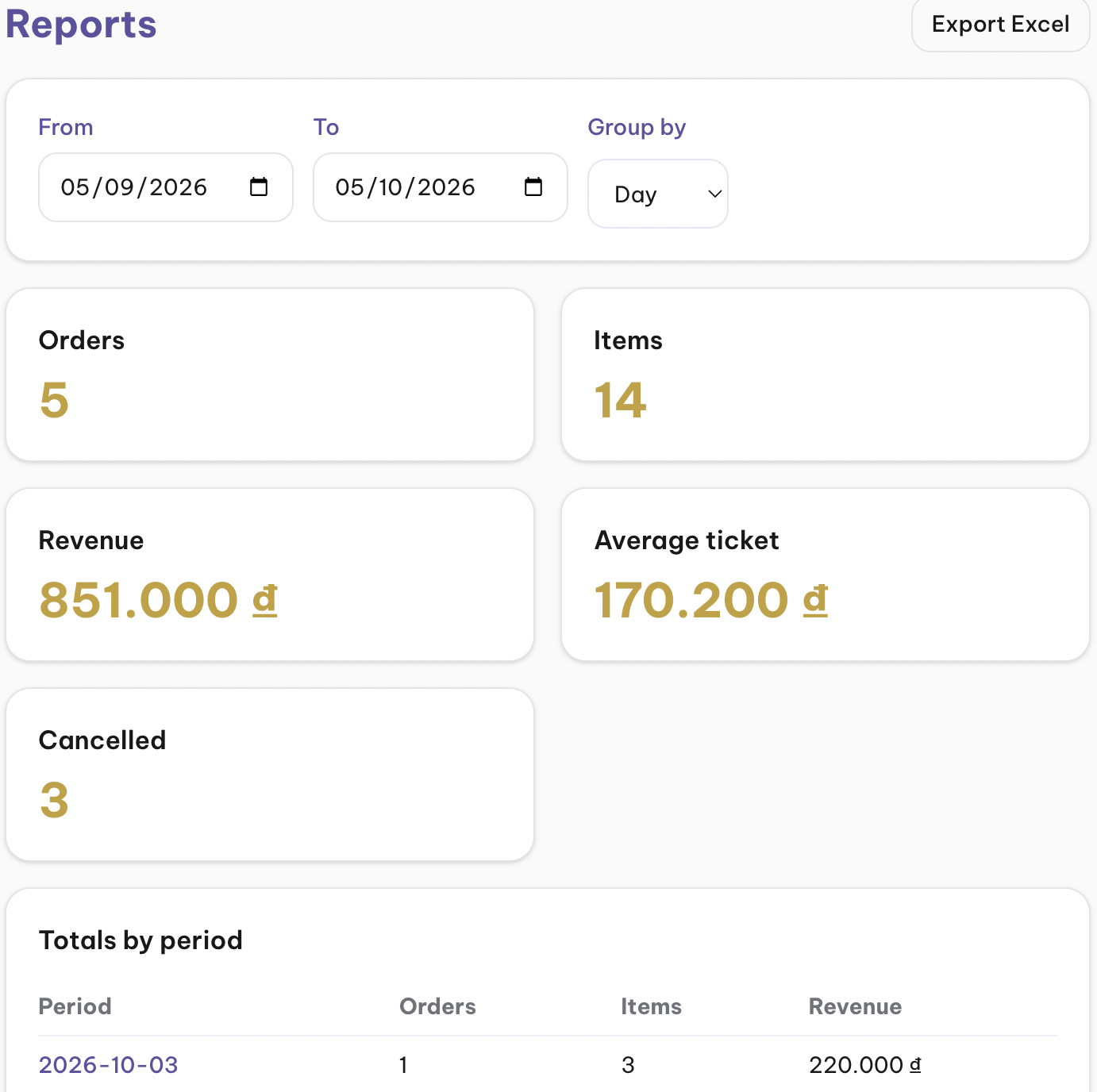
Reports summarize orders and revenue for a date range, including staff activity and a spreadsheet export.
Schedule combos
Owner, shop manager, guest
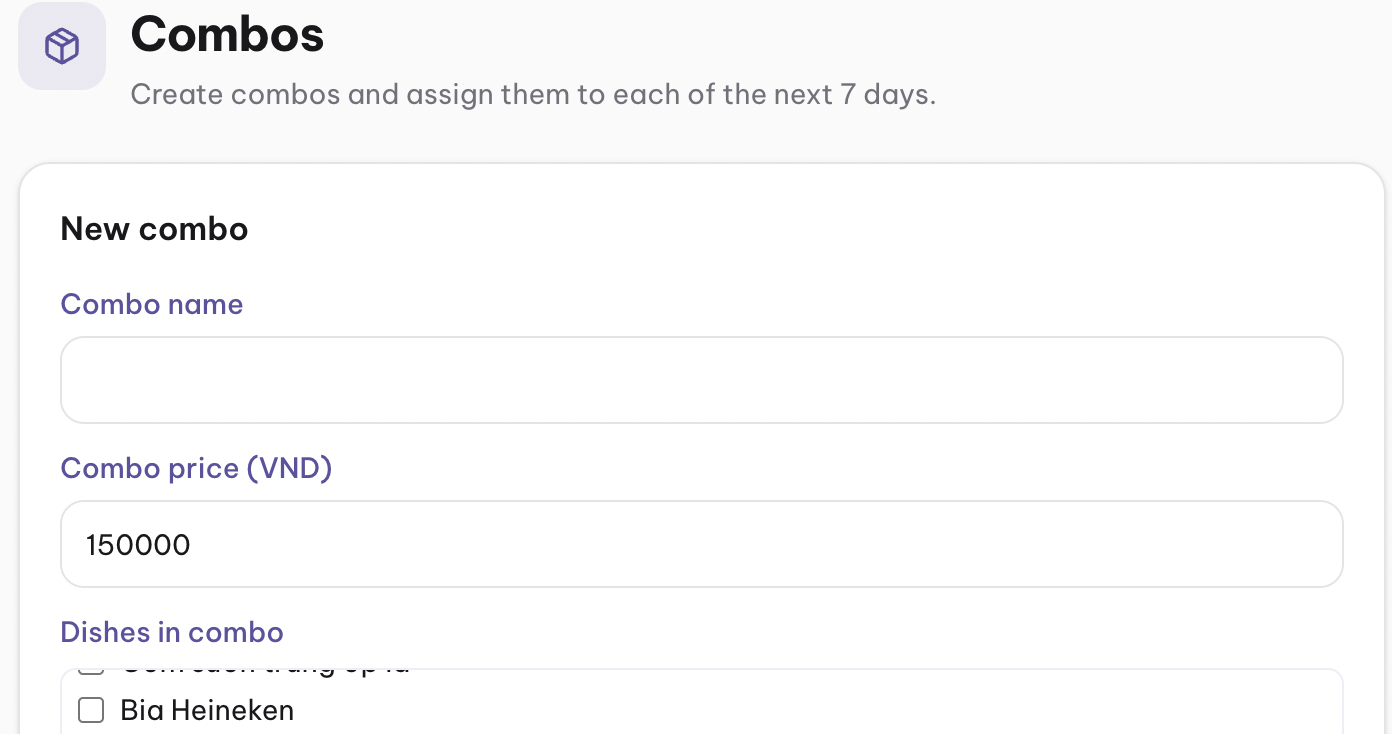
A combo is a priced set of dishes. The shop sets which combos are offered on each day of the week. Guests see today's combos and can add one to the cart or to an open order.
Standout
Ask the assistant
Guest
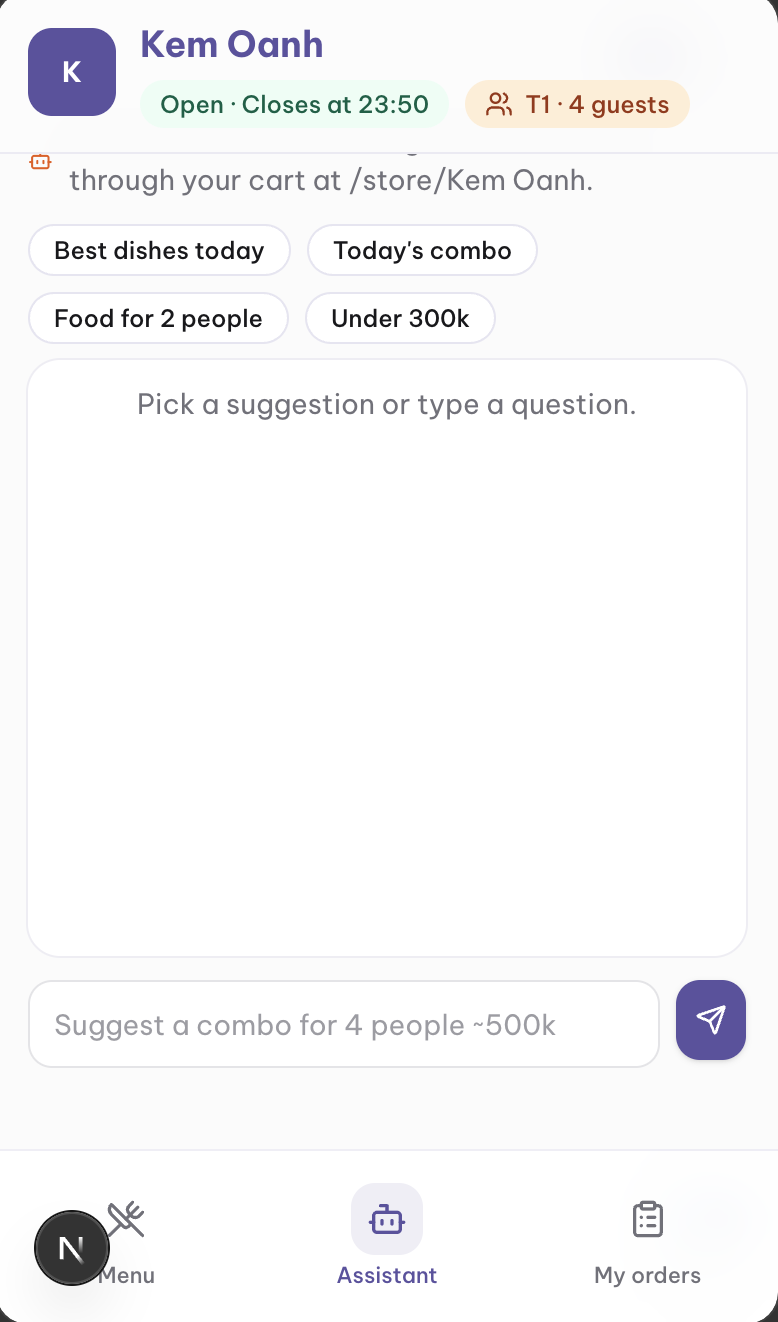
On the shop menu, the assistant suggests dishes from that shop's menu, sales, and today's combos. It can answer a budget or a party size and offer to add the suggestion to the cart. It stays on the menu and refuses off-topic questions.
Allow notifications
Staff, kitchen, guest
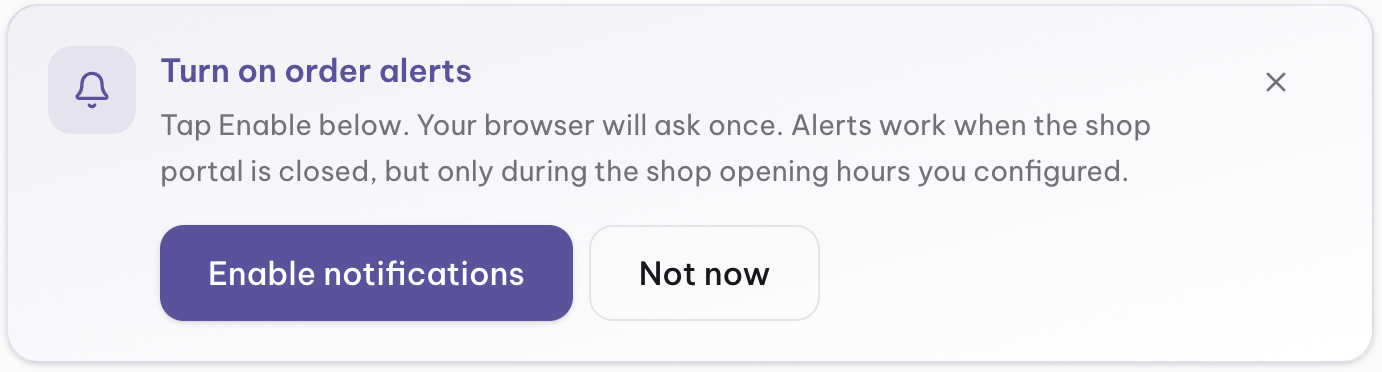
The app asks inside the page. People do not have to hunt in browser settings. Staff and kitchen are asked in the shop workspace. Guests are asked on their order. Permission is optional. Alerts still respect the rules above.
Connect another system
Shop manager
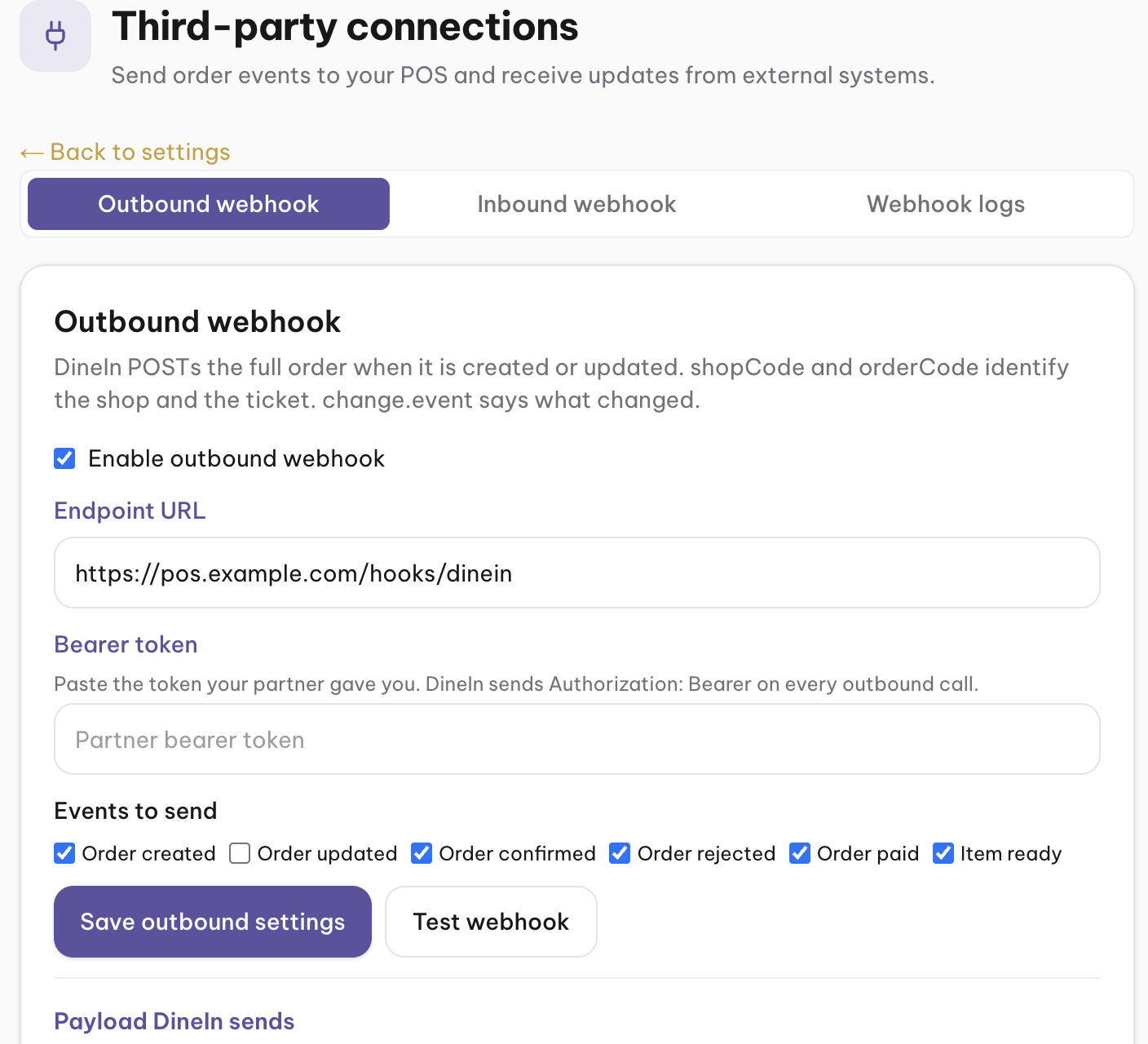
Outbound calls send the full order whenever it is created or updated. The partner's bearer token is sent on each call. Inbound calls let that system create or update an order. iOrdly always mints its own order code and stores the partner's reference code when they send one. Payloads use shop code and order code, not internal ids.
Platform admin
Platform admin
Admins look after shops, users, audit history, and AI limits for the whole platform. They do not replace a shop's daily service unless they also have a shop role.